|
|
|
|
Quelle raspberry-pi.md Sprache: unbekannt
|
|
Spracherkennung für: .md vermutete Sprache: Unknown {[0] [0] [0]} [Methode: Schwerpunktbildung, einfache Gewichte, sechs Dimensionen]
---
summary: "OpenClaw on Raspberry Pi (budget self-hosted setup)"
read_when:
- Setting up OpenClaw on a Raspberry Pi
- Running OpenClaw on ARM devices
- Building a cheap always-on personal AI
title: "Raspberry Pi (platform)"
---
# OpenClaw on Raspberry Pi
## Goal
Run a persistent, always-on OpenClaw Gateway on a Raspberry Pi for **~$ 35- 80** one-time cost ( no monthly fees).
Perfect for:
- 24/7 personal AI assistant
- Home automation hub
- Low-power, always-available Telegram/WhatsApp bot
## Hardware Requirements
| Pi Model | RAM | Works? | Notes |
| --------------- | ------- | -------- | ---------------------------------- |
| **Pi 5** | 4GB/8GB | ✅ Best | Fastest, recommended |
| **Pi 4** | 4GB | ✅ Good | Sweet spot for most users |
| **Pi 4** | 2GB | ✅ OK | Works, add swap |
| **Pi 4** | 1GB | ⚠️ Tight | Possible with swap, minimal config |
| **Pi 3B+** | 1GB | ⚠️ Slow | Works but sluggish |
| **Pi Zero 2 W** | 512MB | ❌ | Not recommended |
**Minimum specs:** 1GB RAM, 1 core, 500MB disk
**Recommended:** 2GB+ RAM, 64-bit OS, 16GB+ SD card (or USB SSD)
## What you need
- Raspberry Pi 4 or 5 (2GB+ recommended)
- MicroSD card (16GB+) or USB SSD (better performance)
- Power supply (official Pi PSU recommended)
- Network connection (Ethernet or WiFi)
- ~30 minutes
## 1) Flash the OS
Use **Raspberry Pi OS Lite (64-bit)** — no desktop needed for a headless server.
1. Download [Raspberry Pi Imager](https://www.raspberrypi.com/software/)
2. Choose OS: **Raspberry Pi OS Lite (64-bit)**
3. Click the gear icon (⚙️) to pre-configure:
- Set hostname: `gateway-host`
- Enable SSH
- Set username/password
- Configure WiFi (if not using Ethernet)
4. Flash to your SD card / USB drive
5. Insert and boot the Pi
## 2) Connect via SSH
```bash
ssh user@gateway-host
# or use the IP address
ssh user@192.168.x.x
```
## 3) System Setup
```bash
# Update system
sudo apt update && sudo apt upgrade -y
# Install essential packages
sudo apt install -y git curl build-essential
# Set timezone (important for cron/reminders)
sudo timedatectl set-timezone America/Chicago # Change to your timezone
```
## 4) Install Node.js 24 (ARM64)
```bash
# Install Node.js via NodeSource
curl -fsSL https://deb.nodesource.com/setup_24.x | sudo -E bash -
sudo apt install -y nodejs
# Verify
node --version # Should show v24.x.x
npm --version
```
## 5) Add Swap (Important for 2GB or less)
Swap prevents out-of-memory crashes:
```bash
# Create 2GB swap file
sudo fallocate -l 2G /swapfile
sudo chmod 600 /swapfile
sudo mkswap /swapfile
sudo swapon /swapfile
# Make permanent
echo '/swapfile none swap sw 0 0' | sudo tee -a /etc/fstab
# Optimize for low RAM (reduce swappiness)
echo 'vm.swappiness=10' | sudo tee -a /etc/sysctl.conf
sudo sysctl -p
```
## 6) Install OpenClaw
### Option A: Standard Install (Recommended)
```bash
curl -fsSL https://openclaw.ai/install.sh | bash
```
### Option B: Hackable Install (For tinkering)
```bash
git clone https://github.com/openclaw/openclaw.git
cd openclaw
npm install
npm run build
npm link
```
The hackable install gives you direct access to logs and code — useful for debugging ARM-specific issues.
## 7) Run Onboarding
```bash
openclaw onboard --install-daemon
```
Follow the wizard:
1. **Gateway mode:** Local
2. **Auth:** API keys recommended (OAuth can be finicky on headless Pi)
3. **Channels:** Telegram is easiest to start with
4. **Daemon:** Yes (systemd)
## 8) Verify Installation
```bash
# Check status
openclaw status
# Check service (standard install = systemd user unit)
systemctl --user status openclaw-gateway.service
# View logs
journalctl --user -u openclaw-gateway.service -f
```
## 9) Access the OpenClaw Dashboard
Replace `user@gateway-host` with your Pi username and hostname or IP address.
On your computer, ask the Pi to print a fresh dashboard URL:
```bash
ssh user@gateway-host 'openclaw dashboard --no-open'
```
The command prints `Dashboard URL:`. Depending on how `gateway.auth.token`
is configured, the URL may be a plain `http:// style='color: green'>127.0.0.1:18789/` link or one
that includes `#token=...`.
In another terminal on your computer, create the SSH tunnel:
```bash
ssh -N -L 18789:127.0.0.1:18789 user@gateway-host
```
Then open the printed Dashboard URL in your local browser.
If the UI asks for shared-secret auth, paste the configured token or password
into Control UI settings. For token auth, use `gateway.auth.token` (or
`OPENCLAW_GATEWAY_TOKEN`).
For always-on remote access, see [Tailscale](/gateway/tailscale).
---
## Performance Optimizations
### Use a USB SSD (Huge Improvement)
SD cards are slow and wear out. A USB SSD dramatically improves performance:
```bash
# Check if booting from USB
lsblk
```
See [Pi USB boot guide](https://www.raspberrypi.com/documentation/computers/raspberry-pi.html#usb-mass-storage-boot) for setup.
### Speed up CLI startup (module compile cache)
On lower-power Pi hosts, enable Node's module compile cache so repeated CLI runs are faster:
```bash
grep -q 'NODE_COMPILE_CACHE=/var/tmp/openclaw-compile-cache' ~/.bashrc || cat >> ~/.bashrc <<'EOF' # pragma: allowlist secret
export NODE_COMPILE_CACHE=/var/tmp/openclaw-compile-cache
mkdir -p /var/tmp/openclaw-compile-cache
export OPENCLAW_NO_RESPAWN=1
EOF
source ~/.bashrc
```
Notes:
- `NODE_COMPILE_CACHE` speeds up subsequent runs (`status`, `health`, `--help`).
- `/var/tmp` survives reboots better than `/tmp`.
- `OPENCLAW_NO_RESPAWN=1` avoids extra startup cost from CLI self-respawn.
- First run warms the cache; later runs benefit most.
### systemd startup tuning (optional)
If this Pi is mostly running OpenClaw, add a service drop-in to reduce restart
jitter and keep startup env stable:
```bash
systemctl --user edit openclaw-gateway.service
```
```ini
[Service]
Environment=OPENCLAW_NO_RESPAWN=1
Environment=NODE_COMPILE_CACHE=/var/tmp/openclaw-compile-cache
Restart=always
RestartSec=2
TimeoutStartSec=90
```
Then apply:
```bash
systemctl --user daemon-reload
systemctl --user restart openclaw-gateway.service
```
If possible, keep OpenClaw state/cache on SSD-backed storage to avoid SD-card
random-I/O bottlenecks during cold starts.
If this is a headless Pi, enable lingering once so the user service survives
logout:
```bash
sudo loginctl enable-linger "$(whoami)"
```
How `Restart=` policies help automated recovery:
[systemd can automate service recovery](https://www.redhat.com/en/blog/systemd-automate-recovery).
### Reduce Memory Usage
```bash
# Disable GPU memory allocation (headless)
echo 'gpu_mem=16' | sudo tee -a /boot/config.txt
# Disable Bluetooth if not needed
sudo systemctl disable bluetooth
```
### Monitor Resources
```bash
# Check memory
free -h
# Check CPU temperature
vcgencmd measure_temp
# Live monitoring
htop
```
---
## ARM-Specific Notes
### Binary Compatibility
Most OpenClaw features work on ARM64, but some external binaries may need ARM builds:
| Tool | ARM64 Status | Notes |
| ------------------ | ------------ | ----------------------------------- |
| Node.js | ✅ | Works great |
| WhatsApp (Baileys) | ✅ | Pure JS, no issues |
| Telegram | ✅ | Pure JS, no issues |
| gog (Gmail CLI) | ⚠️ | Check for ARM release |
| Chromium (browser) | ✅ | `sudo apt install chromium-browser` |
If a skill fails, check if its binary has an ARM build. Many Go/Rust tools do; some don't.
### 32-bit vs 64-bit
**Always use 64-bit OS.** Node.js and many modern tools require it. Check with:
```bash
uname -m
# Should show: aarch64 (64-bit) not armv7l (32-bit)
```
---
## Recommended Model Setup
Since the Pi is just the Gateway (models run in the cloud), use API-based models:
```json
{
"agents": {
"defaults": {
"model": {
"primary": "anthropic/claude-sonnet-4-6",
"fallbacks": ["openai/gpt-5.4-mini"]
}
}
}
}
```
**Don't try to run local LLMs on a Pi** — even small models are too slow. Let Claude/GPT do the heavy lifting.
---
## Auto-Start on Boot
Onboarding sets this up, but to verify:
```bash
# Check service is enabled
systemctl --user is-enabled openclaw-gateway.service
# Enable if not
systemctl --user enable openclaw-gateway.service
# Start on boot
systemctl --user start openclaw-gateway.service
```
---
## Troubleshooting
### Out of Memory (OOM)
```bash
# Check memory
free -h
# Add more swap (see Step 5)
# Or reduce services running on the Pi
```
### Slow Performance
- Use USB SSD instead of SD card
- Disable unused services: `sudo systemctl disable cups bluetooth avahi-daemon`
- Check CPU throttling: `vcgencmd get_throttled` (should return `0x0`)
### Service will not start
```bash
# Check logs
journalctl --user -u openclaw-gateway.service --no-pager -n 100
# Common fix: rebuild
cd ~/openclaw # if using hackable install
npm run build
systemctl --user restart openclaw-gateway.service
```
### ARM Binary Issues
If a skill fails with "exec format error":
1. Check if the binary has an ARM64 build
2. Try building from source
3. Or use a Docker container with ARM support
### WiFi Drops
For headless Pis on WiFi:
```bash
# Disable WiFi power management
sudo iwconfig wlan0 power off
# Make permanent
echo 'wireless-power off' | sudo tee -a /etc/network/interfaces
```
---
## Cost Comparison
| Setup | One-Time Cost | Monthly Cost | Notes |
| -------------- | ------------- | ------------ | ------------------------- |
| **Pi 4 (2GB)** | ~$45 | $0 | + power (~$5/yr) |
| **Pi 4 (4GB)** | ~$55 | $0 | Recommended |
| **Pi 5 (4GB)** | ~$60 | $0 | Best performance |
| **Pi 5 (8GB)** | ~$80 | $0 | Overkill but future-proof |
| DigitalOcean | $0 | $6/mo | $72/year |
| Hetzner | $0 | €3.79/mo | ~$50/year |
**Break-even:** A Pi pays for itself in ~6-12 months vs cloud VPS.
---
## Related
- [Linux guide](/platforms/linux) — general Linux setup
- [DigitalOcean guide](/platforms/digitalocean) — cloud alternative
- [Hetzner guide](/install/hetzner) — Docker setup
- [Tailscale](/gateway/tailscale) — remote access
- [Nodes](/nodes) — pair your laptop/phone with the Pi gateway
[Dauer der Verarbeitung: 0.14 Sekunden, vorverarbeitet 2026-09-29]
|
2026-10-11
|
|
|
|
|
Neuigkeiten |
| Aktuelles |
| Motto des Tages |
|
Open Source Software |
|
|
|
Jenseits des Üblichen ....
|
|
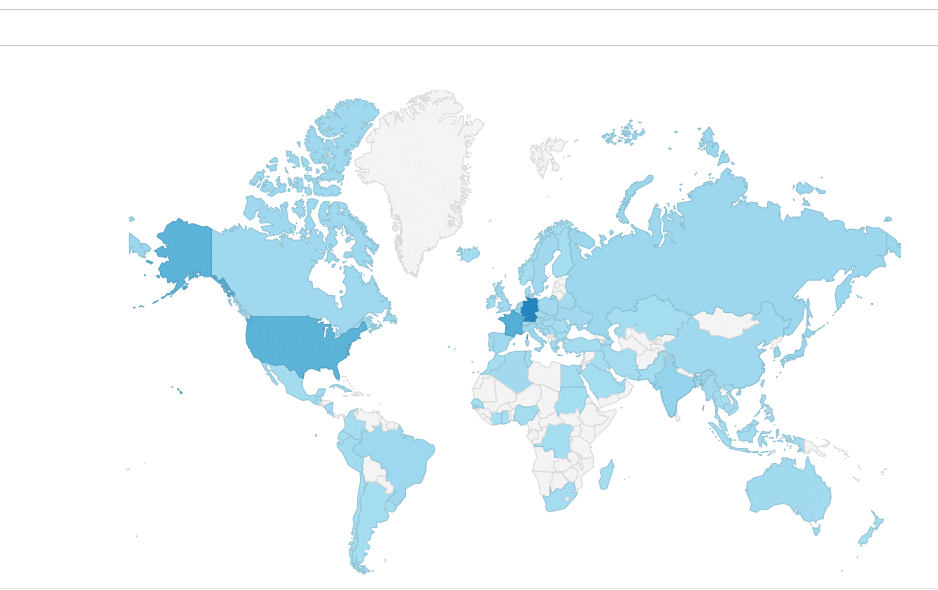
Besucherstatistik |
|
|
| Statistik |
| #Sources=1127926 |
| #Domains=1947682 |
|
|